

Refine Grains Map Widget#
The Refine Grain Mapping widget (technically the “Second Stage Indexing”) is used to perform high-precision refinement of the crystal orientations (UBI) and spatial positions \((x,y,z)\) of grains identified in previous steps.
While the initial indexing finds potential orientations, this widget uses iterative refinement against peak lists to filter out “ghost” grains and improve the accuracy of the grain map.
Functionality#
Iterative HKL Refinement: Gradually tightens Miller indices tolerances to improve orientation accuracy.
Position Refinement: Assigns 3D peaks to specific grains to determine their center of mass in the sample.
Grain Filtering: Automatically discards grains that fall below a minimum peak count threshold after refinement.
User Interface#
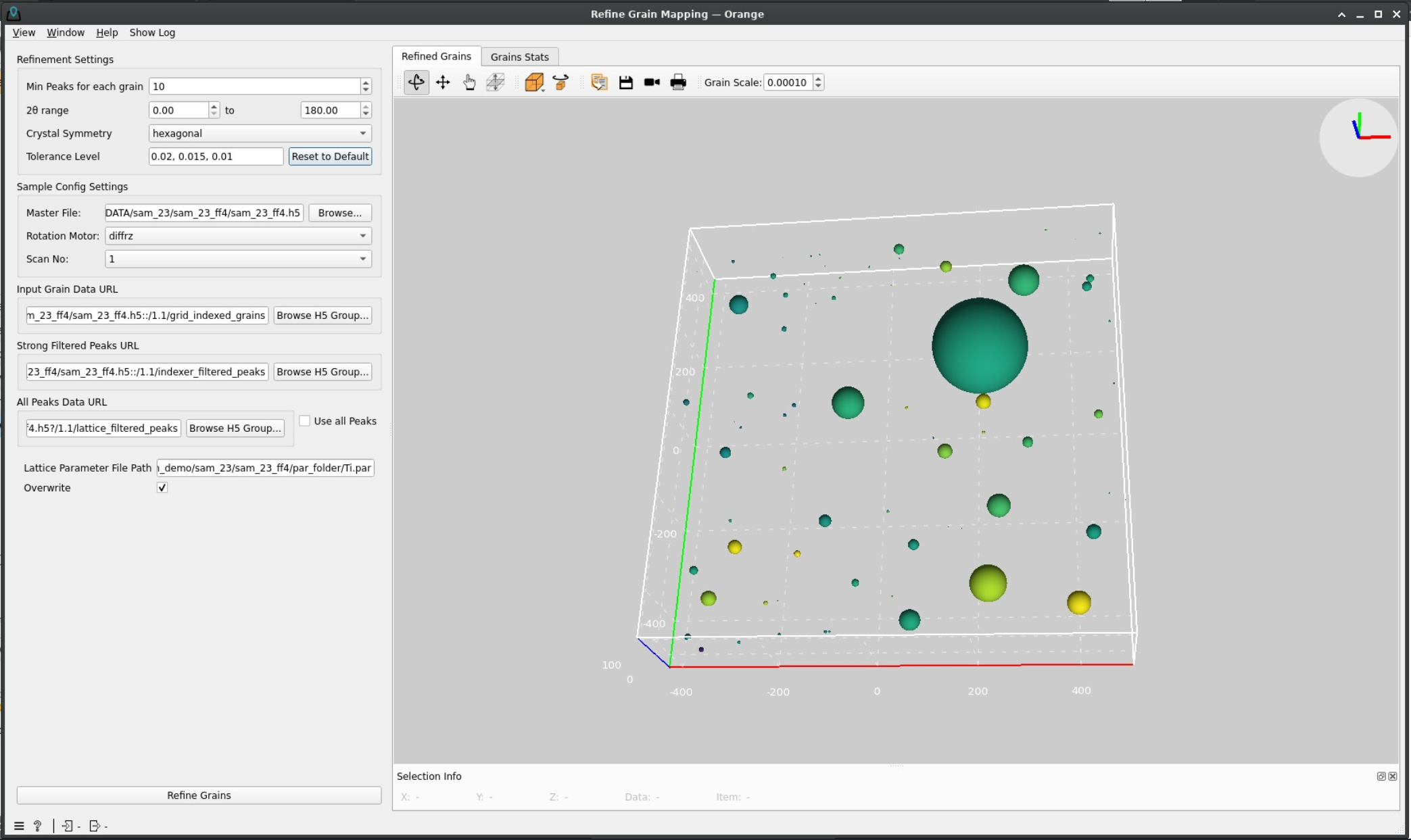
The widget features a specialized Refined Grains 3D viewer and a Grains Stats tab to analyze the quality of the resulting map.
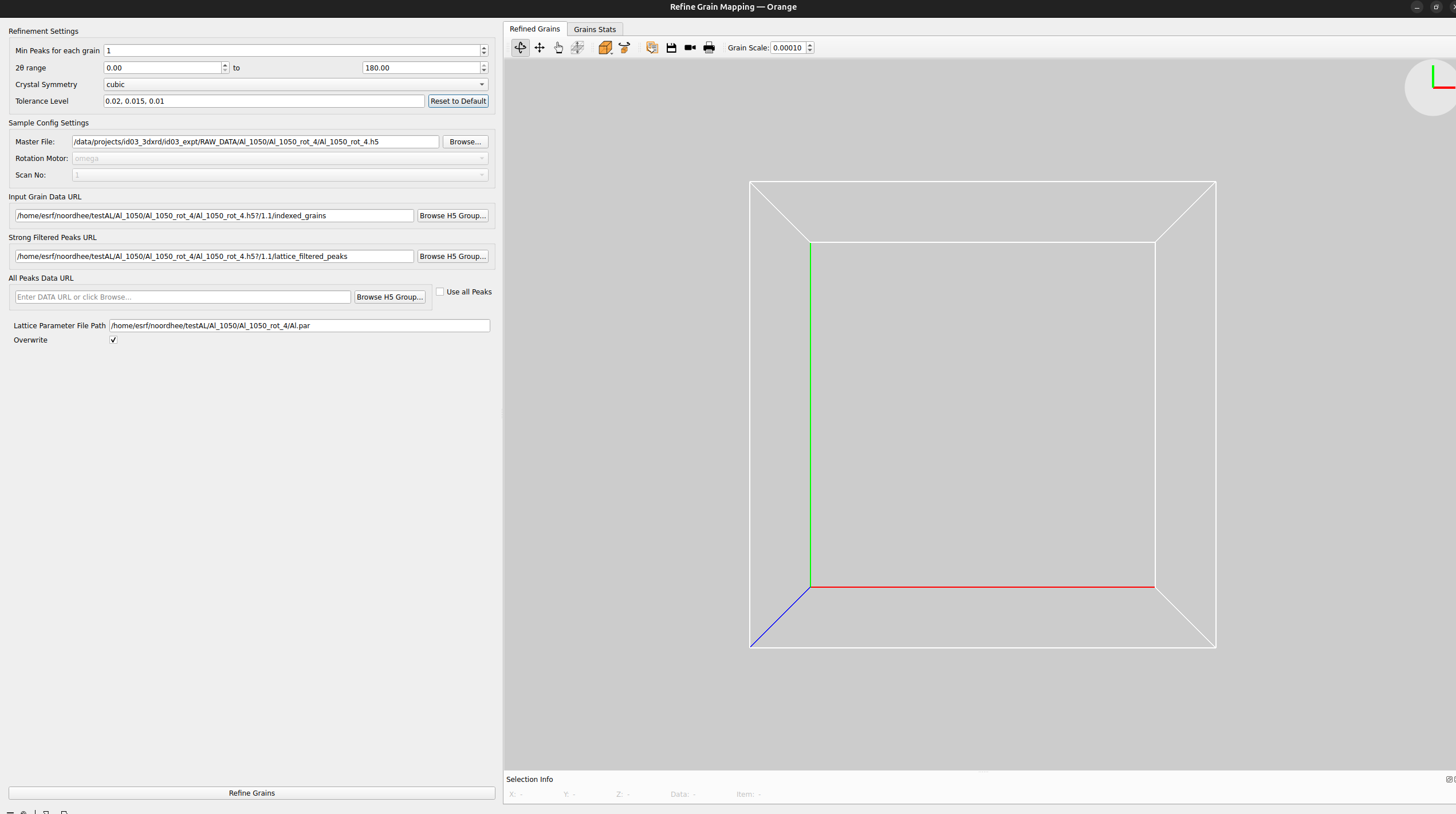
Refined Grains Tab: A 3D scene displaying grains as spheres. The color and position represent the grain’s peak counts and physical location.
Grains Stats Tab: Provides histograms and plots of grains by its peak counts.
Control Panel#
Data URLs: These fields link the results of previous tasks to the refinement engine:
Indexed Grain URL: The HDF5/Nexus path to the initial orientations (from the Index Grains widget).
Strong Peaks URL: The filtered peak list used for the initial coarse refinement.
Fine Peaks URL (Optional): A high-resolution peak list used for the final “fine” refinement stage.
Refinement Parameters:
HKL Tolerances: A decreasing sequence of tolerances (e.g., 0.3, 0.2, 0.1). The algorithm iteratively refines the grain, discarding peaks that don’t fit the tighter tolerance at each step.
Min Peaks: The minimum number of diffraction peaks a grain must “explain” to be considered valid. Grains with fewer peaks are deleted.
Two Theta Range: Limits refinement to peaks within a specific 2θ angular range (useful for ignoring outer rings with lower signal-to-noise ratio).
Symmetry: Specifies the crystal symmetry (e.g., cubic, hexagonal) used to constrain the orientation refinement.
Coarse to Fine#
Refining a grain map is an iterative process:
Initial Setup The widget usually receives the Lattice File and Sample Config automatically from the upstream workflow. Ensure the Indexed Grain URL points to your recent indexing results.
Setting Iterative Steps Under HKL Tolerances, provide a sequence.
Example: 0.1, 0.05, 0.02
The engine will first find peaks within 0.1 of an integer HKL, refine the UBI, then repeat the process with 0.05, and so on.
Fine Refinement If you have a “Fine Peaks” list (peaks extracted with a lower threshold or better background subtraction), enable the Fine Peaks URL. This allows the final UBI and position to be calculated using the maximum amount of available data.
Analysis After clicking Run Grid Indexing:
Check the Grains Map and Log messages.
Use the Refined Grains 3D view to check for spatial clusters. If grains are overlapping significantly, your HKL tolerances might be too loose.
Execution Control#
Overwrite: If checked, it replaces the “make_map_grains” group in the HDF5 file.
Run Grid Indexing: Starts the computation. Intermediate grains results are updated regularly on the Grain map, and the log of grains will appear on the log screen, based on the grain map progress and log message, user can choose to continue the refine grains, or terminate the computation, may be set with different parameters and re compute the refine grain maps.
Example Usage#
Connect the output of the “Index Grains” widget and intensity peaks to this widget.
Set “Min Peaks” to 10 to filter out noise-induced grains.
Set “HKL Tolerances” to 0.1, 0.05.
Run the task and inspect the 3D map to ensure the grain morphology matches your expected sample volume.
Tip
If the refinement results in 0 grains, try increasing your HKL tolerances or lowering the “Min Peaks” threshold. It often means the initial indexing was slightly off, and the refinement “shrank” the grains until they vanished. Even you can check the segmentation, and Geometry Computation.